
I spend quite a lot of time working with websites and CMSs. That is true for my day job, but also for Just Me. I think about topics, look for illustrations, receive press releases, download images and occasionally have illustrations made. And then there are the photos people send me. Marketing departments and PR agencies have a remarkable talent for sending images that are far too large for use on a website. A perfectly ordinary press photo can easily be several megabytes. The same is true for many photos I find myself, and for illustrations generated or created specifically for an article. That means I have to resize most of these photos. So how do you do that in a smart and, preferably, automated way?
Manually resizing photos is not exactly the most complicated job in the world. But if you have to do it ten or fifteen times a day, every day, it becomes one of those tiny jobs that slowly starts to annoy you. And tiny annoying jobs are exactly the kind of things I like trying to automate.
My first attempt was a small image resizer I built using Valtown, an online vibe coding tool. It was also my first real experiment with vibe coding, and when the thing actually worked, I was rather pleased with myself.
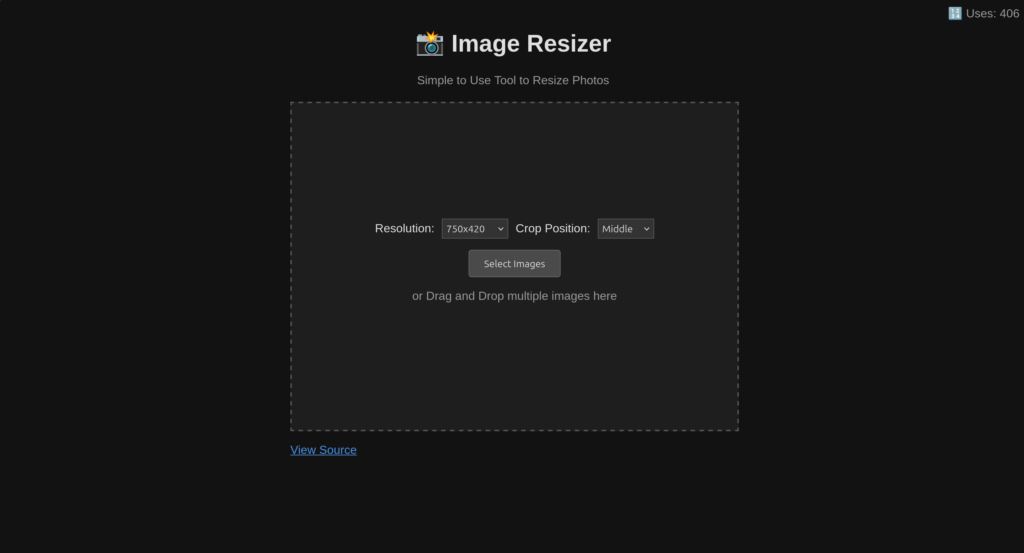
As you can see, it was very basic. But it worked.
After a while, though, I wanted something better. So I asked Claude to build me a more complete photo tool. That resulted in a surprisingly polished browser-based application. It is fast, the interface looks good, and it allows me to resize and crop images exactly the way I want.
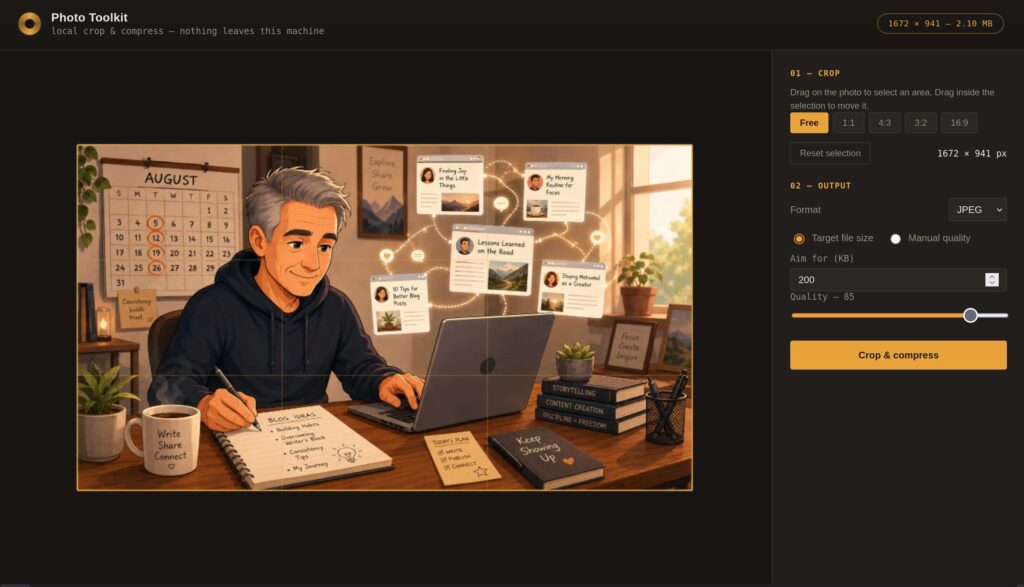
There was only one problem.
I still had to use it manually. For every photo, the workflow looked something like this: save the image somewhere, open the Photo Toolkit, load the image, choose the correct crop, resize it, download the result and then upload that version to the CMS. Again, none of this is difficult. But repeat it ten or fifteen times a day and suddenly it feels like an awful lot of clicking.
So I started wondering whether I could remove the clicking altogether. Could “the computer” simply notice that I had downloaded a large image and resize it for me? According to Claude: yes.
Which is how my Photo Toolkit slowly turned into something slightly different. I now have a small service running permanently in the background on my Linux laptop. It watches my Downloads directory. Whenever a new photo or illustration appears there, the service notices it and automatically creates a much smaller version of roughly 300 kB. The original file stays exactly where it is. Next to it appears the resized version. That is important, because sometimes I still want the original image for something else. Perhaps I want to crop it differently later, use it in print, or simply keep the highest-quality version available. So nothing is overwritten. The service just adds a website-friendly copy.
There are obviously a few practical details to solve. My Downloads directory does not only contain images. There may also be PDFs, ZIP files, documents and all sorts of other things in there. A 21 MB PDF does not suddenly need to become a 300 kB JPEG. The watcher therefore only pays attention to a small number of image formats, such as JPEG and PNG. It also needs to know which files it has already processed. Otherwise it could discover its own resized image and resize that one again. And again. And again. That has been solved by marking processed images so the service knows to leave them alone.
The nicest part is that I now barely notice any of this. The watcher runs quietly in the background. When I restart my laptop, the service starts automatically. I do not have to open an application. I do not have to remember anything. I download an image. A few seconds later, the smaller version is simply there.
This is probably not going to change the world. But it does remove a repetitive little task from my working day, and I rather like tools that do that. Especially when, after a while, you almost forget that the tool even exists.
If this sounds useful to you as well, have a look at the Just Me Toolkit page. You can find the link to it on the left-hand side of the main text on this blog.