
Via my recent post, I Went Looking at a Conference About Screenshots (About What?) and Found a Filesystem for Browser Tabs (see here: https://justme.website/content-creation/i-went-looking-at-a-conference-about-screenshots-about-what-and-found-a-filesystem-for-browser-tabs/), I seem to have stumbled into a new world. Or perhaps I should say that I have returned to an old one. Plain text files, bitmap images and other simple file formats have been around for as long as I can remember. They are boring in the best possible way: simple, understandable and usually not tied to a particular service or vendor. But after years of apps, platforms, cloud services and increasingly complicated workflows, I had more or less stopped thinking about them.
Then I discovered Screenshot Conf. And that made me look at screenshots differently.
A screenshot isn’t necessarily just an illustration
I take screenshots all the time. But I mostly use them as illustrations. Something interesting happens on my screen, I capture it, crop it and use it somewhere. That is about it. But screenshots can obviously be much more than that. They can be artistic objects. They can become part of collages. They can document software, interfaces and moments in digital history.
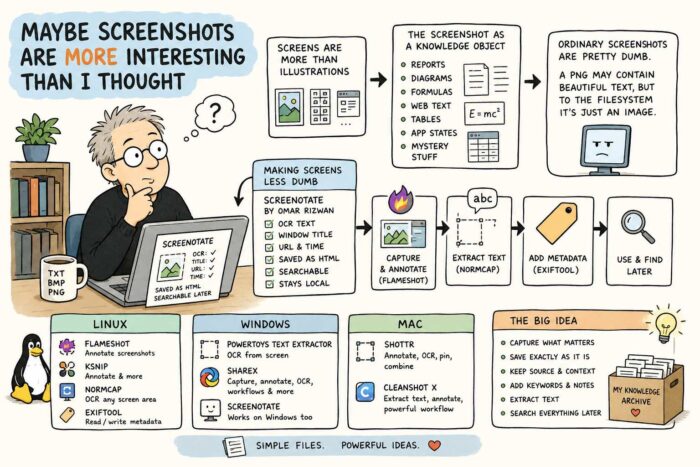
Even more interesting to me, however, is the idea of the screenshot as a knowledge object. You can capture part of a technical report. A diagram. A complicated mathematical formula. A paragraph from a website. A table from a PDF. A particular state of an application. Or simply something you don’t yet know what to do with, but suspect might become useful later.
The screenshot preserves exactly what you saw. The problem is that ordinary screenshots are fairly dumb. There may be a beautifully readable paragraph inside a PNG file, but as far as the filesystem is concerned, it is still just an image.
Making screenshots less dumb
This is where things become more interesting. Omar Rizwan, one of the people behind Screenshot Conf (https://screenshot.arquipelago.org/) and also the creator of TabFS (https://omar.website/tabfs/), made a tool called Screenotate for macOS and Windows (https://screenotate.com/). Screenotate doesn’t merely save the image. It uses OCR to recognise the text inside the screenshot and can also store information such as the window title, URL and time of capture. The result is searchable. Rizwan designed it so that screenshots remain on your own computer, with each capture stored as a self-contained HTML file.
That changes the nature of a screenshot quite dramatically. Imagine capturing one interesting equation from a 120-page research report. Normally you would later have to remember which report was that again? With a tool that also stores the source and recognises the text, the screenshot becomes part of a searchable personal archive.
That started me looking for other tools that do similar things. And there are quite a few.
Linux: Flameshot, NormCap and metadata
On Linux, Flameshot (https://flameshot.org/) is probably one of the better-known screenshot tools. It lets you annotate a screenshot immediately with arrows, text, highlights, shapes, blur and other elements. It also has a command-line interface, which means it can become part of scripts and more elaborate workflows.
Ksnip (https://ksnip.com/) takes a similar approach and combines screenshots with annotation tools.
For OCR, I particularly like the idea behind NormCap (https://dynobo.github.io/normcap/). Instead of capturing an image, you select a piece of the screen and NormCap tries to recognise the information inside it and copies the result as text. It is available for Linux, Windows and macOS and uses Tesseract OCR.
And if you really want to treat screenshots as proper information objects, there is ExifTool (https://exiftool.org/). It can read and write metadata, including XMP metadata in PNG files. That means you could add things such as descriptions, tags or other information to screenshots and potentially automate that process with scripts.
So a Linux workflow could be surprisingly simple: Take the screenshot with Flameshot. Annotate it. Extract useful text with NormCap. Add metadata with ExifTool. Suddenly a PNG is becoming something rather more useful.
Windows has some very good options too
Windows users have PowerToys Text Extractor (https://github.com/microsoft/PowerToys/blob/main/doc/devdocs/modules/textextractor.md), Microsoft’s open-source OCR utility. Press a keyboard shortcut, draw a rectangle around something on screen and the recognised text is copied to your clipboard. It even works on text displayed inside images or videos.
There is also ShareX (https://getsharex.com/), which has developed into much more than a screenshot utility, with capture, editing and workflow features. And, of course, Screenotate itself works on Windows too.
And on the Mac
macOS already does quite a lot with screenshots and text recognition itself, but there are some interesting specialised tools.
Shottr (https)://shottr.cc/, for example, combines screenshots, annotation and OCR. You can select text that normally isn’t selectable, recognise it and copy it directly to the clipboard. It can also combine screenshots, pin them on screen and add annotations.
CleanShot X (https://cleanshot.com/) takes a similarly broad approach. It can extract text from screenshots and open existing screenshots directly in its annotation environment.
Screenshots as a personal knowledge layer
What interests me most is not really which screenshot application has the longest feature list. It is the underlying idea. We usually think about screenshots as disposable images. Take one, send it to someone, use it in a blog post and forget about it.
But what if screenshots become part of a personal knowledge system? You could capture an important paragraph without copying an entire document. Save a formula exactly as it was typeset. Preserve a table together with its source URL. Add keywords. Extract the text. Annotate why you thought it was interesting. Search everything later.
When I was still using an iPhone, I deliberately set the system language to English. One of the reasons was Apple Notes. Set to English, it gave me access to OCR features that were surprisingly useful for collecting information. I could be reading a magazine, come across a paragraph or even a complete article that I wanted to keep, photograph it directly from Notes and have the app turn the image into editable text inside the note. In a way, it was exactly the same idea: capture something visually first, then use OCR to turn the interesting part back into text that you can search, store and work with later.
Screenshots are fundamentally just files. That means you are not necessarily dependent on one enormous knowledge-management application to do all this. The screenshot itself can become the basic object. That feels strangely old-fashioned. And perhaps that is exactly why I like it.